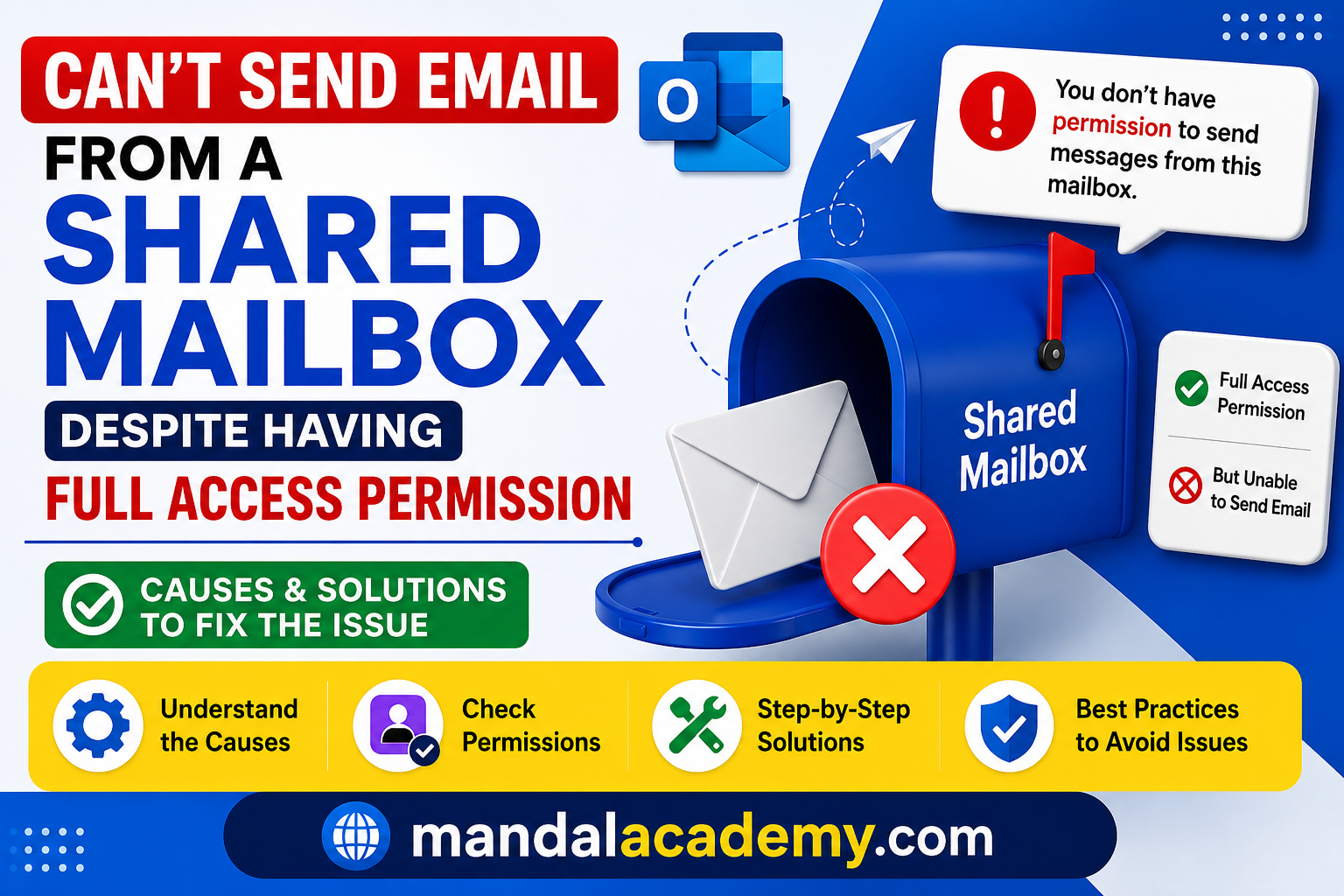
You have been granted Full Access permission to a shared mailbox, but when you attempt to send an email using the shared mailbox address, Outlook returns the following error:
You don't have permission to send messages from this mailbox.
In some cases, you may also receive a Non-Delivery Report (NDR) similar to the following:
Your message did not reach some or all of the intended recipients. This message could not be sent. You do not have permission to send the message on behalf of the specified user. Error: [0x80070005-0x000004dc-0x00000524]
Error Code
0x80070005-0x000004dc-0x00000524
This error typically occurs when a user attempts to send an email from a shared mailbox without the appropriate sending permissions. Although Full Access permission allows you to open, read, and manage the contents of a shared mailbox, it does not provide the ability to send emails from that mailbox.
To send emails from a shared mailbox, you must also be assigned one of the following permissions:
- Send As
- Send on Behalf
Understanding Shared Mailbox Permissions
Full Access
This permission allows users to:
- Open the shared mailbox
- Read and manage emails
- Create and modify folders
- Manage mailbox content
However, it does not allow users to send emails from the shared mailbox.
Send As
The Send As permission allows a user to send emails that appear to come directly from the shared mailbox.
Example:
From: support@contoso.com
Recipients will only see the shared mailbox address and will not know which user sent the email.
Send on Behalf
The Send on Behalf permission allows a user to send emails on behalf of the shared mailbox.
Example:
From: Bob Ross on behalf of support@contoso.com
Recipients can see both the sender's identity and the shared mailbox address.
How to Fix "You Don't Have Permission to Send Messages from This Mailbox"
If you already have Full Access permission but cannot send emails from the shared mailbox, ask your Exchange Administrator to assign either Send As or Send on Behalf permission.
Option 1: Grant Send As Permission
Run the following command in Exchange Online PowerShell:
Add-RecipientPermission -Identity "SharedMailbox@domain.com" -Trustee "user@domain.com" -AccessRights SendAs
Example:
Add-RecipientPermission -Identity "support@contoso.com" -Trustee "bob.ross@contoso.com" -AccessRights SendAs
This command grants Bob Ross the ability to send emails as the shared mailbox.
Option 2: Grant Send on Behalf Permission
Run the following command in Exchange Online PowerShell:
Set-Mailbox -Identity "SharedMailbox@domain.com" -GrantSendOnBehalfTo "user@domain.com"
Example:
Set-Mailbox -Identity "support@contoso.com" -GrantSendOnBehalfTo "bob.ross@contoso.com"
This command allows Bob Ross to send emails on behalf of the shared mailbox.
Still Receiving the Error After Assigning Send on Behalf Permission?
If Send on Behalf permission has already been assigned and you are still receiving the same error, the issue may be related to how the shared mailbox is configured in Outlook.
A common mistake is adding the shared mailbox as a separate account using the Add Account option in Outlook. While this configuration may work with Send As permissions, it can cause issues when using Send on Behalf permissions.
For Send on Behalf functionality to work correctly, the shared mailbox should be added as an additional mailbox under your primary Exchange account.
Correct Method to Add a Shared Mailbox in Outlook
- Open Microsoft Outlook.
- Click File.
- Select Account Settings > Account Settings.
- Choose your primary Exchange account.
- Click Change.
- Select More Settings.
- Open the Advanced tab.
- Under Mailboxes, click Add.
- Enter the shared mailbox name or email address.
- Click OK.
- Click Apply, then OK.
- Restart Outlook.
Important
If the shared mailbox has already been added as a separate account using the Add Account option, remove it first and then re-add it using the method described above.
Additional Considerations
- Permission changes in Microsoft 365 may take some time to replicate.
- Restart Outlook after permissions are assigned.
- Verify that the shared mailbox address is selected in the From field when composing emails.
- Full Access permission alone does not provide email sending capabilities.
- If Outlook is running in cached mode, allow sufficient time for changes to synchronize.
Conclusion
The error "You don't have permission to send messages from this mailbox" is usually caused by missing Send As or Send on Behalf permissions. While Full Access permission allows you to manage the mailbox, it does not grant permission to send emails from it.
If the required permissions have already been assigned and the issue persists, verify that the shared mailbox has been added correctly in Outlook. For users with Send on Behalf permission, the shared mailbox should be added as an additional mailbox under the primary Exchange account rather than as a separate account.
By ensuring the correct permissions and Outlook configuration are in place, you can successfully send emails from the shared mailbox without encountering error 0x80070005-0x000004dc-0x00000524.
For more Microsoft 365, Exchange Online, Outlook, and PowerShell tutorials, visit MandalAcademy.com.
This version is more professional, SEO-friendly, and suitable for publishing on a technical blog.


Comments (0)
No comments yet. Be the first to leave one!