Introduction
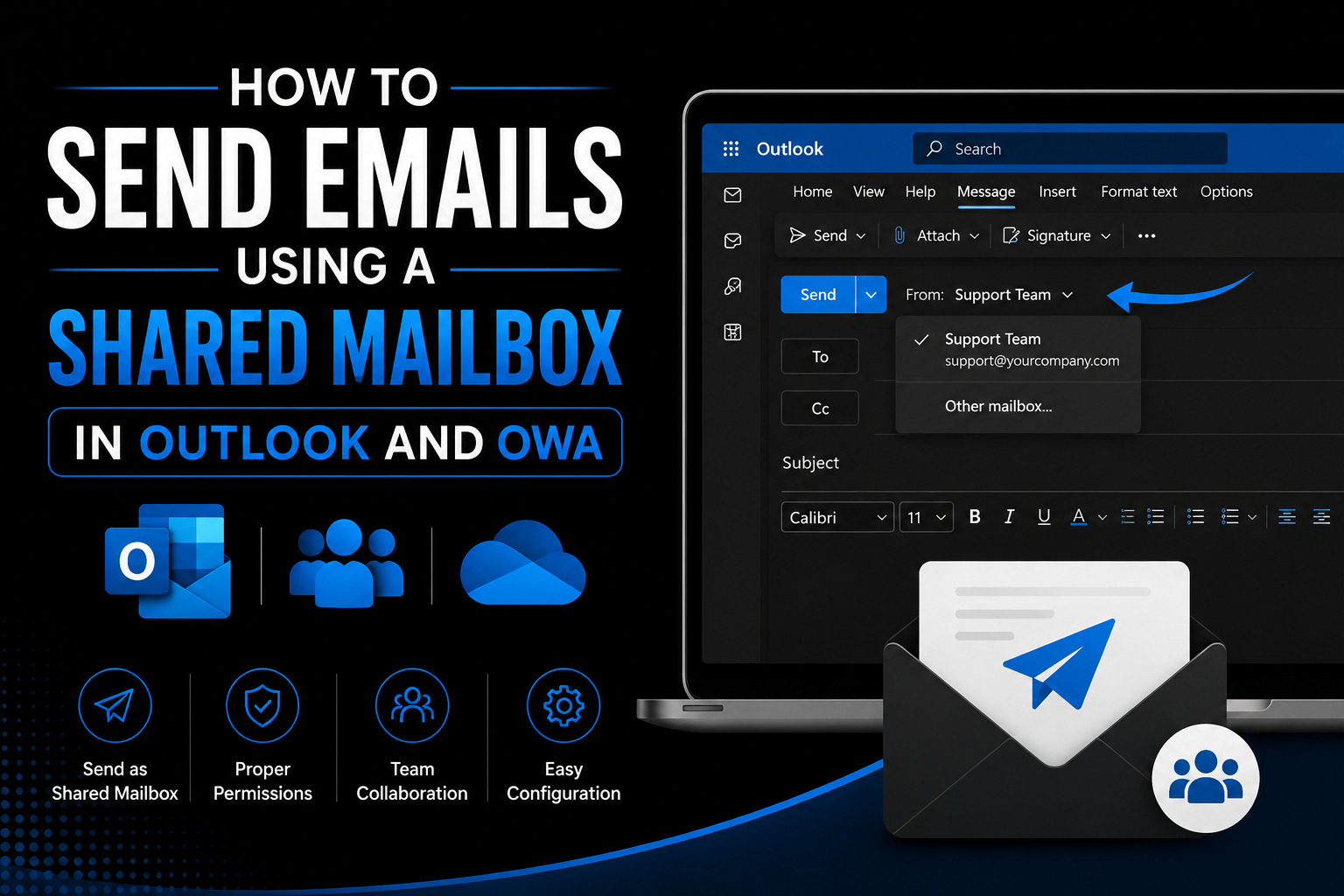
Shared mailboxes in Microsoft 365 allow multiple users to send and receive emails using a common email address, such as support@company.com or info@company.com. This feature is widely used by teams to manage customer inquiries, department communications, and group mailboxes efficiently.
In this guide, you will learn how to send emails from a shared mailbox using both Outlook for Microsoft 365 and Outlook Web Access (OWA).
Table of Contents
- Prerequisites for Sending Emails from a Shared Mailbox
- Send Email Using a Shared Mailbox in Outlook
- Send Email Using a Shared Mailbox in OWA - Way 1 & Way 2
- Conclusion
Prerequisites for Sending Emails from a Shared Mailbox
Before sending emails from a shared mailbox, ensure that you have been assigned one of the following permissions:
- Send As – Allows you to send emails that appear to come directly from the shared mailbox.
- Send on Behalf – Allows recipients to see that the email was sent on behalf of the shared mailbox.
If you do not have the required permissions, contact your Microsoft 365 administrator.
#Send Email Using a Shared Mailbox in Outlook
Follow the steps below to send an email from a shared mailbox using Outlook for Microsoft 365:
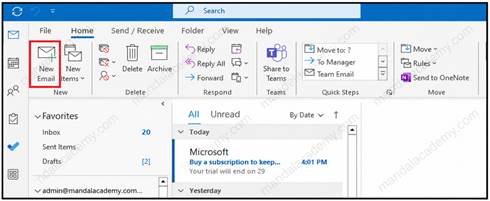
Step 1: Create a New Email
Open Outlook and click New Email to create a new message.
Step 2: Display the From Field
If the From field is not visible:
- Open the email window.
- Select the Options tab.
- Click From to enable the From field.
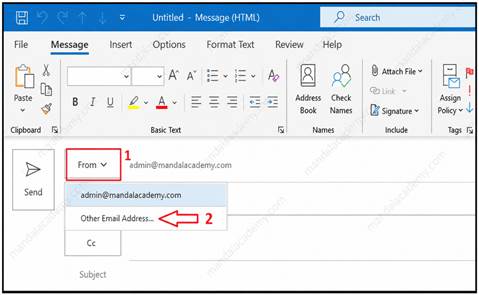
Step 3: Select the Shared Mailbox
- Click the From button.
- Select Other Email Address.
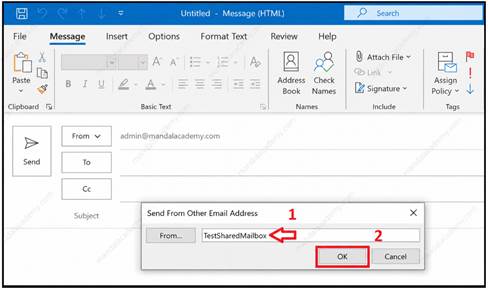
- Enter the shared mailbox name or email address.
- Alternatively, click From and search for the mailbox in the Address Book.
- Click OK.
Step 4: Send the Email
The shared mailbox address will now appear in the From field. Compose your message and click Send.
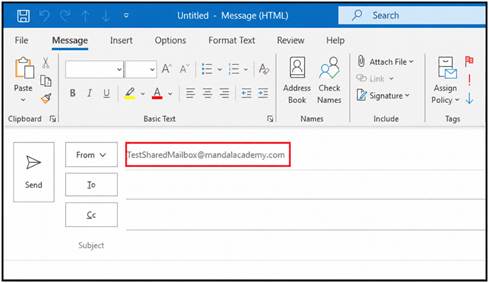
The recipient will see the email as coming from the shared mailbox, depending on the permissions assigned to you.
#Send Email Using a Shared Mailbox in Outlook Web Access (OWA) – Way 1
You can also send emails from a shared mailbox using Outlook on the web.
Step 1: Create a New Message
Sign in to Outlook Web Access and click New Mail.
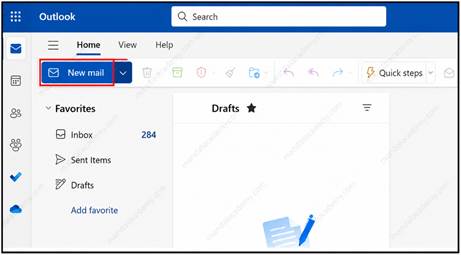
Step 2: Enable the From Field
- Click the Options menu.
- Select Show From.
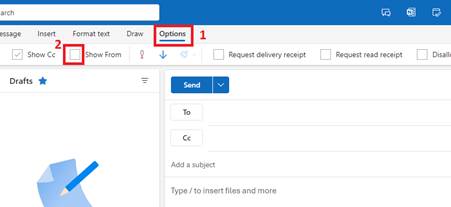
The From field will now be displayed in the email compose window.
Step 3: Add the Shared Mailbox
- Click the drop-down arrow beside the From address.
- Select Other Email Address.
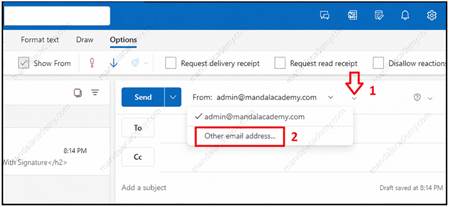
- Enter the shared mailbox name or email address.
- Choose the mailbox from the suggested results.
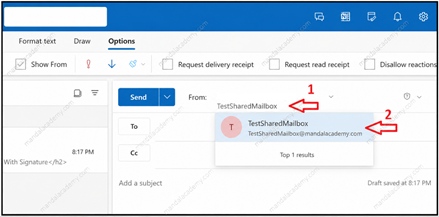
Step 4: Send the Email
Once the shared mailbox address appears in the From field, compose your message and send it.
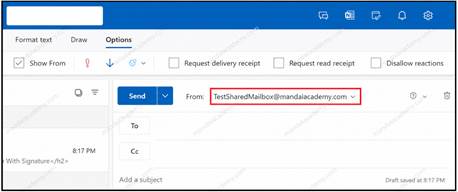
Your email will be sent using the shared mailbox identity.
#Send Email Using a Shared Mailbox in Outlook Web Access (OWA) – Way 2
If you have been granted Full Access and (Send As or Send on Behalf) permission to a shared mailbox, you can open it in a separate browser window in Outlook on the Web (OWA)
Step 1: Sign in to Outlook on the Web
Open Outlook on the Web and sign in with your Microsoft 365 account.
Step 2: Open the Shared Mailbox
- Click your profile picture or initials in the top-right corner.
- Select Open another mailbox.
Step 3: Search for the Shared Mailbox
- Type the name or email address of the shared mailbox.
- Select the shared mailbox from the search results.
- Click Open.
Step 4: Access the Shared Mailbox
The shared mailbox will open in a new browser tab or window, allowing you to:
- Read and send emails
- Manage folders
- Access the shared mailbox calendar
- Create rules and organize messages
Conclusion
Sending emails from a shared mailbox in Microsoft Outlook and Outlook Web Access is a straightforward process once the appropriate permissions are assigned. Whether you use the Outlook desktop application or OWA, the From field allows you to easily select the shared mailbox and send emails on behalf of your team or department.
Understanding how to use shared mailboxes effectively can improve collaboration, streamline communication, and help maintain a professional and consistent email presence across your organization.
Related Articles
- Send As vs Send on Behalf vs Full Access Permissions in Microsoft 365
- How to Add a Shared Mailbox in Outlook and OWA
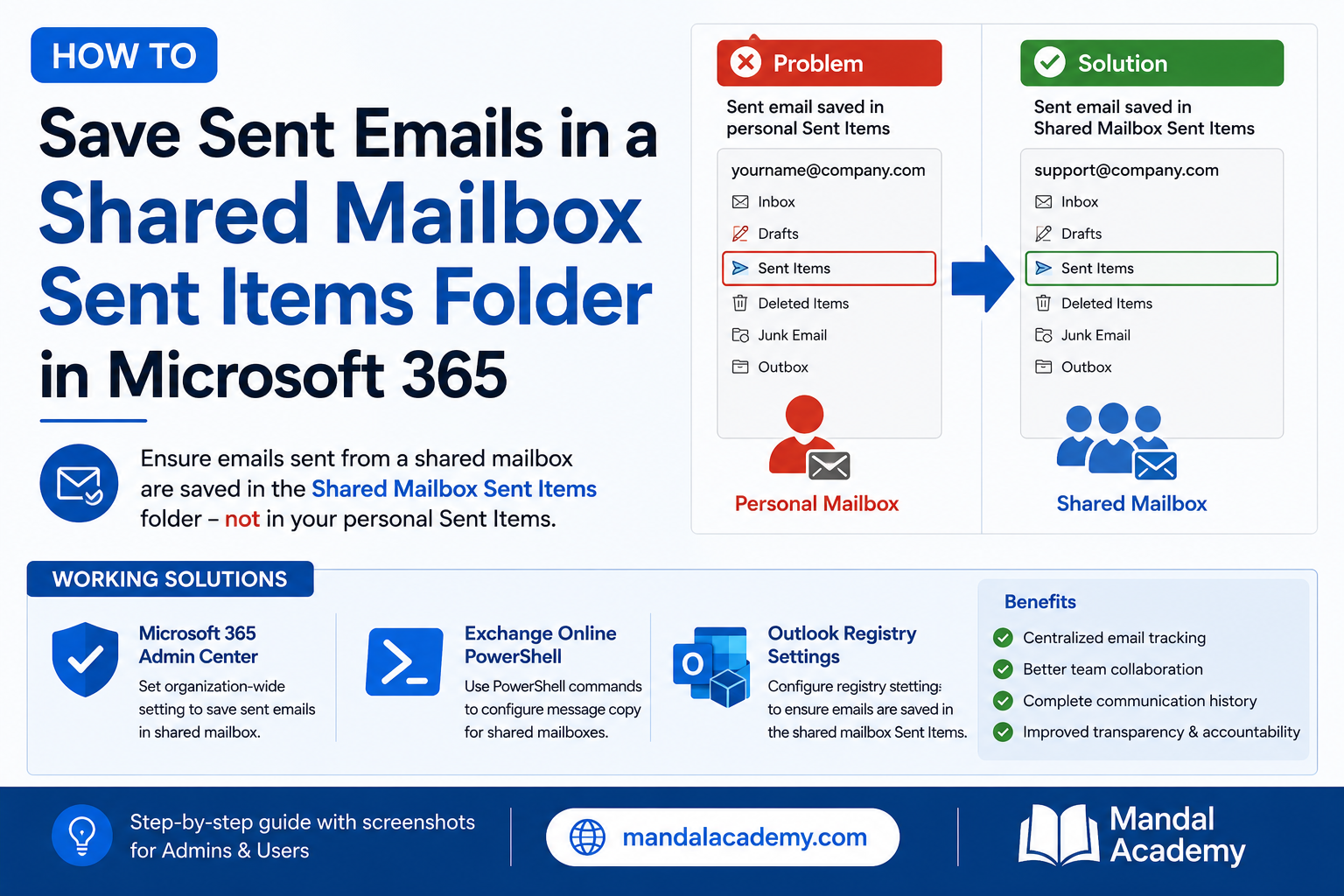
- How to Save Sent Emails in a Shared Mailbox Sent Items Folder
- How to Grant Shared Mailbox Permissions in Exchange Online

Comments (0)
No comments yet. Be the first to leave one!