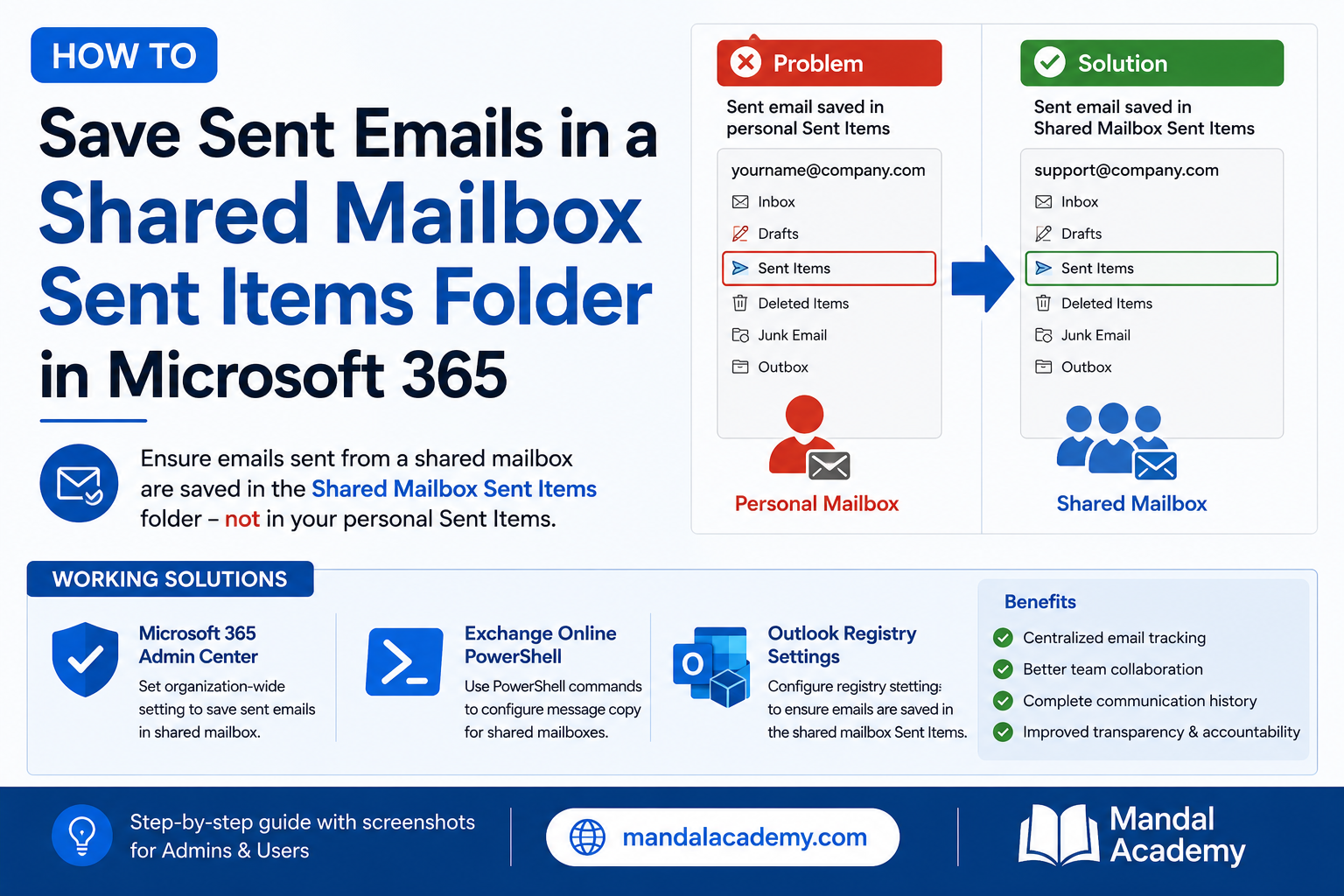
Problem:
You have been granted Full Access, Send As, or Send on Behalf permissions to a shared mailbox. When you send an email using the shared mailbox address, the message is delivered successfully, but the sent email appears in your personal mailbox's Sent Items folder instead of the shared mailbox's Sent Items folder.
This behavior can create confusion for team members who rely on the shared mailbox to track outgoing communications.
Why Are Sent Emails Not Saved in the Shared Mailbox Sent Items Folder?
In Microsoft 365, shared mailboxes typically do not require a separate license and cannot be accessed directly through a standalone sign-in. Instead, users access the shared mailbox through their own mailbox after permissions have been assigned.
When a user sends an email from a shared mailbox, Outlook uses the user's account to process the message. As a result, Outlook saves the sent email in the sender's personal Sent Items folder by default.
To ensure sent messages are stored in the shared mailbox, additional configuration is required.
Methods to Save Sent Emails in a Shared Mailbox Sent Items Folder
You can configure this behavior using the following methods:
- Microsoft 365 Admin Center
- Exchange Online PowerShell
- Outlook Registry Setting (DelegateSentItemsStyle)
Method 1: Configure Sent Items Settings in Microsoft 365 Admin Center
The easiest way to save sent emails in a shared mailbox is through the Microsoft 365 Admin Center.
Step 1: Open Shared Mailboxes
- Sign in to the Microsoft 365 Admin Center.
- Navigate to Teams & Groups > Shared Mailboxes.
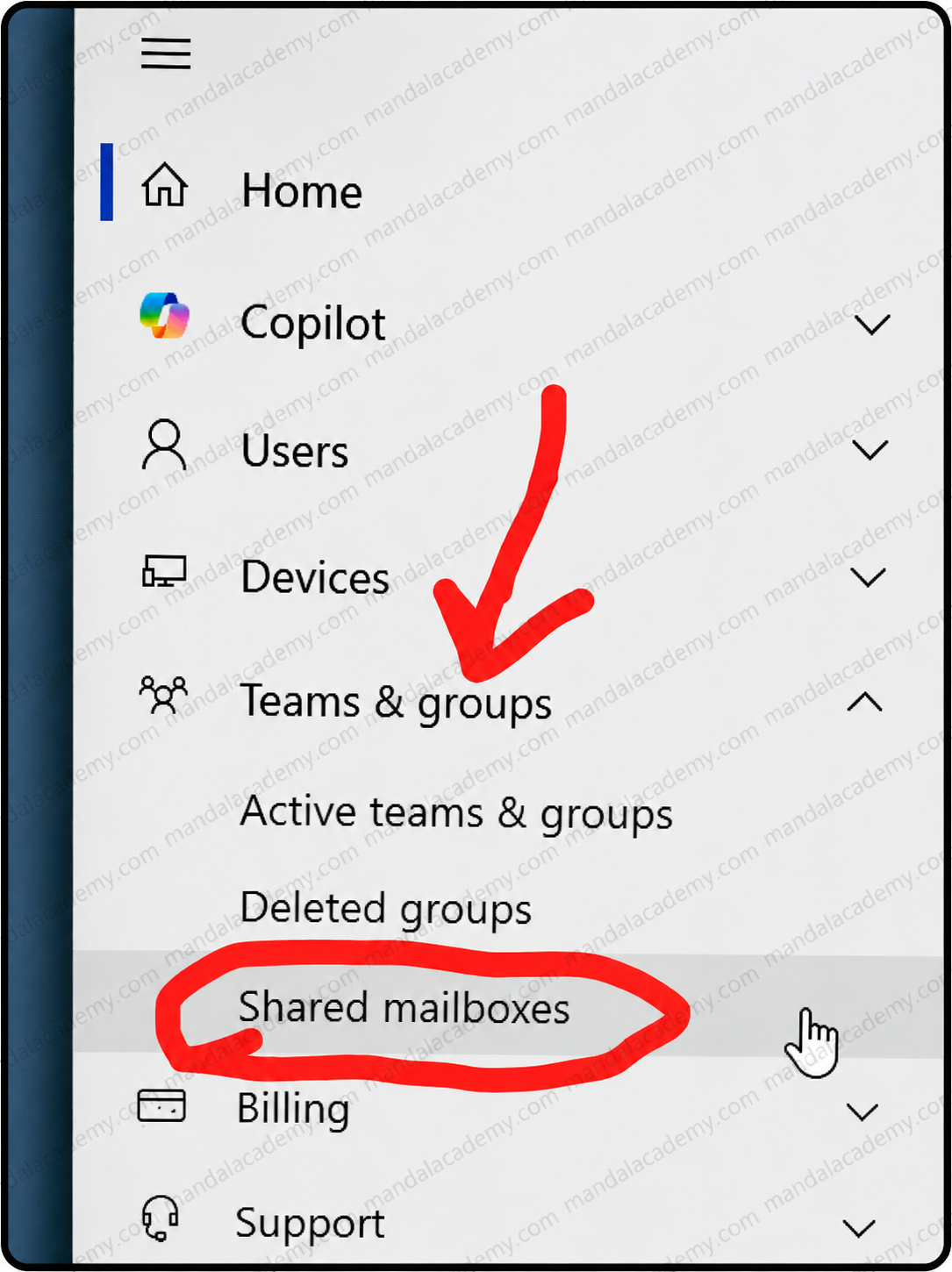
- Select the shared mailbox you want to configure.
Step 2: Edit Sent Items Settings
- On the shared mailbox properties page, locate the Sent Items section.
- Click Edit.
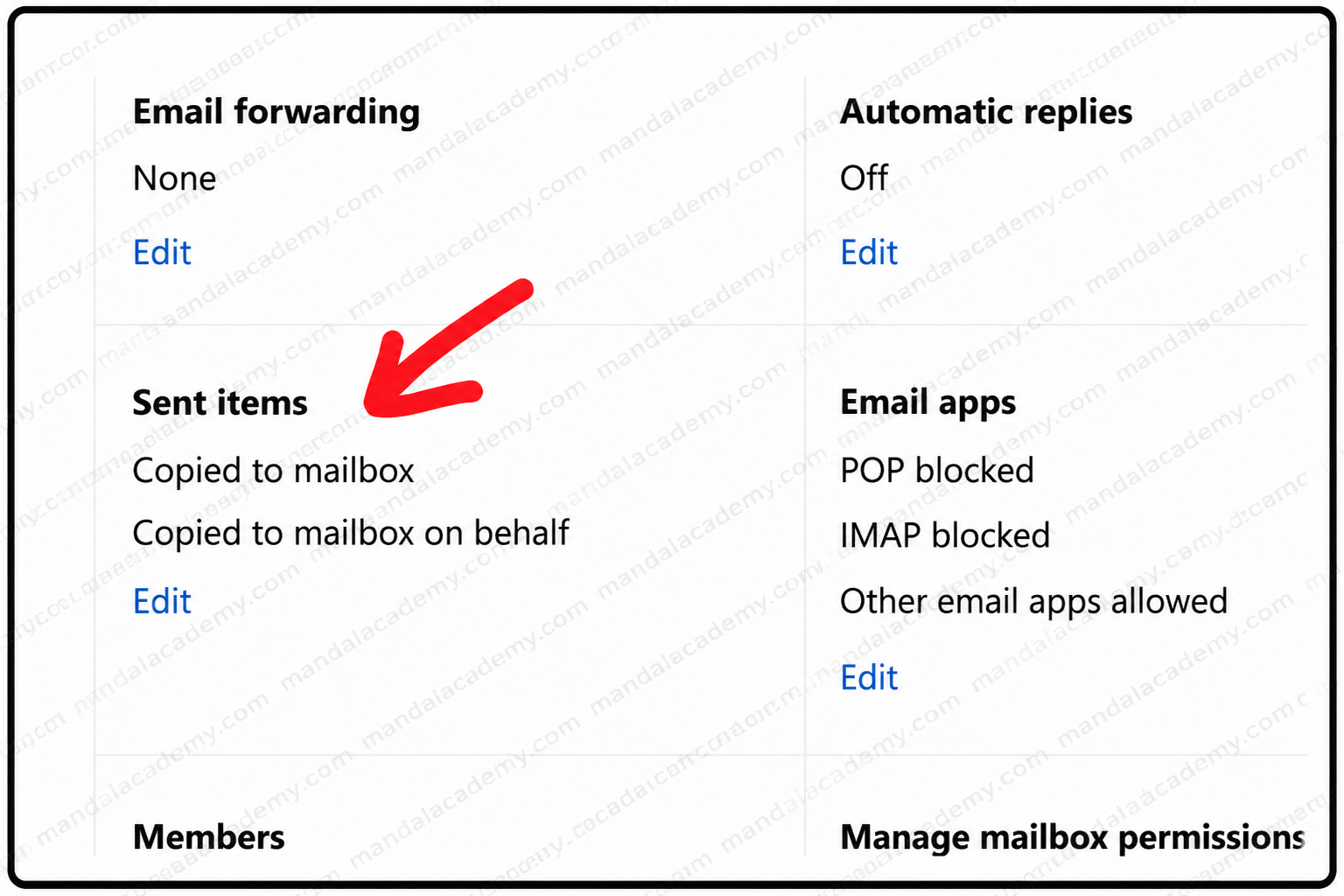
Step 3: Enable Sent Item Copying
Enable the following options:
Copy items sent as this mailbox
Enable this option if users have Send As permission. A copy of all sent emails will be stored in the Shared Mailbox Sent Items folder.
Copy items sent on behalf of this mailbox
Enable this option if users have Send on Behalf permission. A copy of all sent emails will be stored in the Shared Mailbox Sent Items folder.
- Click Save.
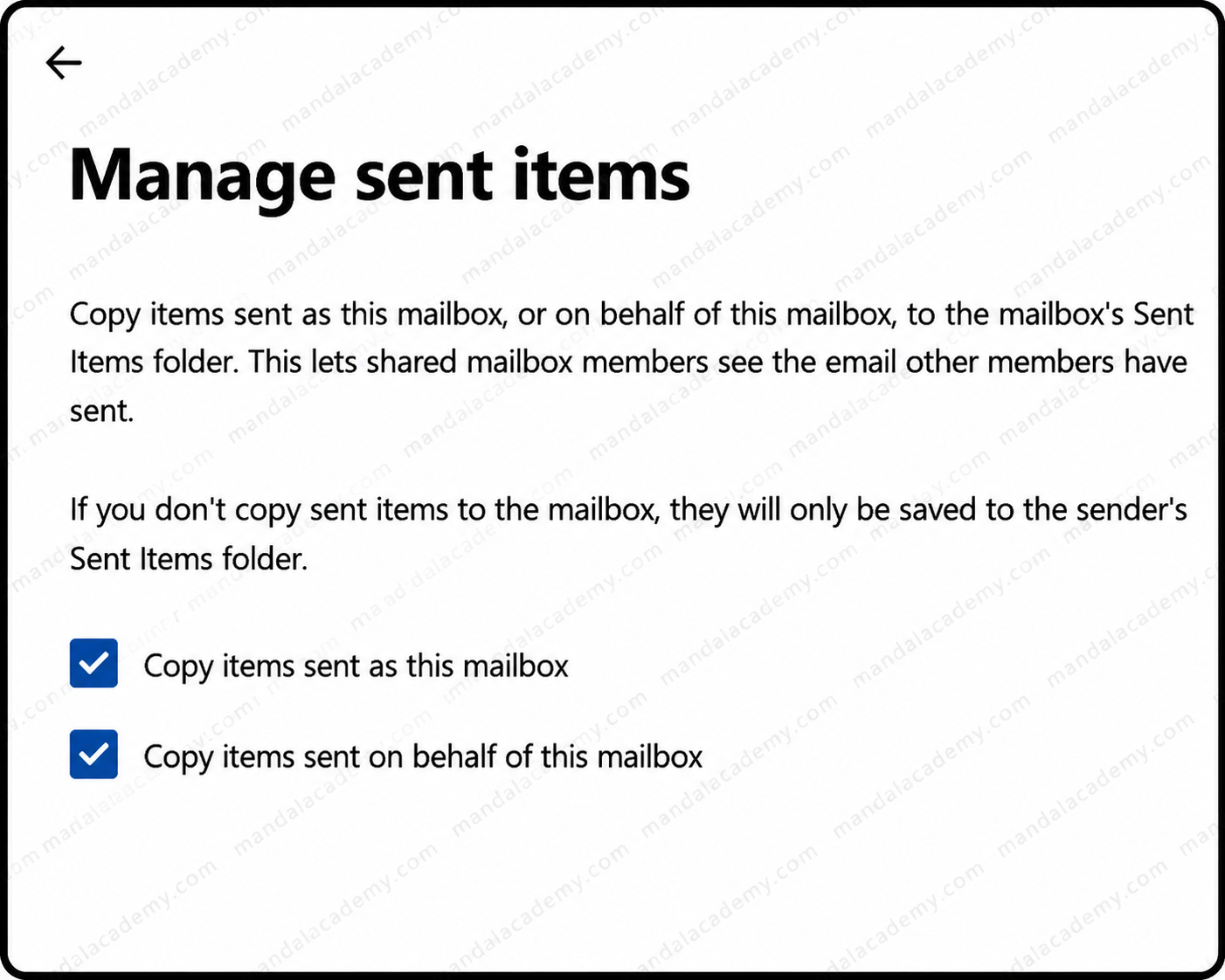
After the changes are applied, future emails sent from the shared mailbox will automatically be saved in the Shared Mailbox Sent Items folder.
Method 2: Configure Shared Mailbox Sent Items Using Exchange Online PowerShell
Exchange Online PowerShell provides a faster and more scalable method, especially when managing multiple shared mailboxes.
Before running the commands below, connect to Exchange Online:
Connect-ExchangeOnline
Understanding the PowerShell Parameters
MessageCopyForSentAsEnabled
This parameter controls whether emails sent using Send As permission are copied to the Shared Mailbox Sent Items folder.
MessageCopyForSendOnBehalfEnabled
This parameter controls whether emails sent using Send on Behalf permission are copied to the Shared Mailbox Sent Items folder.
Verify Sent Items Configuration for a Shared Mailbox
Check Send As Configuration
Get-Mailbox "testshared@domain.com" | Select-Object MessageCopyForSentAsEnabled
Check Send on Behalf Configuration
Get-Mailbox "testshared@domain.com" | Select-Object MessageCopyForSendOnBehalfEnabled
Check All Shared Mailboxes
Get-Mailbox -ResultSize Unlimited -RecipientTypeDetails SharedMailbox | Select-Object Name, MessageCopyForSentAsEnabled, MessageCopyForSendOnBehalfEnabled
Find Shared Mailboxes with Send As Copy Disabled
Get-Mailbox -ResultSize Unlimited -RecipientTypeDetails SharedMailbox | Where-Object {$_.MessageCopyForSentAsEnabled -eq $false} | Select-Object Name, MessageCopyForSentAsEnabled
Find Shared Mailboxes with Send on Behalf Copy Disabled
Get-Mailbox -ResultSize Unlimited -RecipientTypeDetails SharedMailbox | Where-Object {$_.MessageCopyForSendOnBehalfEnabled -eq $false} | Select-Object Name, MessageCopyForSendOnBehalfEnabled
Enable Sent Item Copying for One Shared Mailbox
Enable Send As Copy
Set-Mailbox "testshared@domain.com" -MessageCopyForSentAsEnabled $true
Enable Send on Behalf Copy
Set-Mailbox "testshared@domain.com" -MessageCopyForSendOnBehalfEnabled $true
Enable Both Settings
Set-Mailbox "testshared@domain.com" -MessageCopyForSentAsEnabled $true -MessageCopyForSendOnBehalfEnabled $true
Enable Sent Item Copying for All Shared Mailboxes
Enable Send As Copy
Get-Mailbox -ResultSize Unlimited -RecipientTypeDetails SharedMailbox | Set-Mailbox -MessageCopyForSentAsEnabled $true
Enable Send on Behalf Copy
Get-Mailbox -ResultSize Unlimited -RecipientTypeDetails SharedMailbox | Set-Mailbox -MessageCopyForSendOnBehalfEnabled $true
Enable Both Settings
Get-Mailbox -ResultSize Unlimited -RecipientTypeDetails SharedMailbox | Set-Mailbox -MessageCopyForSentAsEnabled $true -MessageCopyForSendOnBehalfEnabled $true
Method 3: Configure DelegateSentItemsStyle Registry Setting in Outlook
In some Outlook desktop client scenarios, you may need to configure the DelegateSentItemsStyle registry value.
Steps to Configure DelegateSentItemsStyle
- Click Start and select Run.
- Type regedit and click OK.
- Navigate to the following registry path:
HKEY_CURRENT_USER\Software\Microsoft\Office\x.0\Outlook\Preferences
Replace x.0 with your Office version:
- 16.0 = Office 2016, Office 2019, Office LTSC 2021, Microsoft 365 Apps
- 15.0 = Office 2013
- 14.0 = Office 2010
- Right-click and create a new DWORD (32-bit) Value.
- Name it DelegateSentItemsStyle.
- Double-click the value.
- Set Value Data to 1.
- Click OK.
- Close Registry Editor.
- Restart Outlook.
This setting helps Outlook save sent emails in the Shared Mailbox Sent Items folder rather than the user's personal Sent Items folder.
Frequently Asked Questions (FAQs)
Why are emails sent from a shared mailbox saved in my mailbox?
By default, Outlook saves sent emails in the sender's mailbox because the user is authenticated through their personal account, not directly through the shared mailbox.
What permissions are required to send emails from a shared mailbox?
You must have one or more of the following permissions:
- Full Access
- Send As
- Send on Behalf
What is the difference between Send As and Send on Behalf?
Send As: The email appears to come directly from the shared mailbox.
Send on Behalf: The email appears as "User Name on behalf of Shared Mailbox".
Can I enable sent item copying for all shared mailboxes?
Yes. Exchange Online PowerShell allows administrators to enable sent item copying for all shared mailboxes using a single command.
Do these settings work in Outlook on the Web (OWA)?
Yes. Settings configured through Microsoft 365 Admin Center or Exchange Online PowerShell apply to Outlook Desktop and Outlook on the Web.
How do I verify if sent item copying is enabled?
Run the following command:
Get-Mailbox "sharedmailbox@domain.com" | Select-Object MessageCopyForSentAsEnabled, MessageCopyForSendOnBehalfEnabled
A value of True confirms the feature is enabled.
Conclusion
When users send emails from a shared mailbox, Outlook may save those messages in the sender's personal Sent Items folder by default. This behavior can make it difficult for teams to track outgoing communications from shared mailboxes.
Fortunately, Microsoft 365 provides multiple ways to save sent emails in the Shared Mailbox Sent Items folder. You can configure the settings through the Microsoft 365 Admin Center, automate the process using Exchange Online PowerShell, or apply the DelegateSentItemsStyle registry setting for Outlook clients.
Implementing these settings ensures better visibility, improved collaboration, and a complete record of all emails sent from shared mailboxes.
Related Articles
- How to Add a Shared Mailbox in Outlook
- Send Email Using a Shared Mailbox in Outlook and OWA
- Send As vs Send on Behalf vs Full Access Permissions
- Shared Mailbox Permissions in Exchange Online
- Can't Send Email After Assigning Full Access Permission to a Shared Mailbox
Frequently Asked Questions (FAQs)
1. Why are emails sent from a shared mailbox saved in my personal Sent Items folder?
By default, Outlook saves sent emails in the sender's mailbox because users access a shared mailbox through their own account. Unless specific settings are enabled, sent messages will appear in the primary mailbox's Sent Items folder instead of the shared mailbox.
2. How do I save emails in the Shared Mailbox Sent Items folder?
You can enable this feature through:
- Microsoft 365 Admin Center
- Exchange Online PowerShell
- Outlook Registry Settings (DelegateSentItemsStyle)
Once enabled, copies of sent emails will automatically be saved in the shared mailbox's Sent Items folder.
3. What is the MessageCopyForSentAsEnabled parameter?
The MessageCopyForSentAsEnabled parameter controls whether emails sent using Send As permission are copied to the Shared Mailbox Sent Items folder.
Example:
Set-Mailbox SharedMailbox@domain.com -MessageCopyForSentAsEnabled $true
4. What is the MessageCopyForSendOnBehalfEnabled parameter?
The MessageCopyForSendOnBehalfEnabled parameter controls whether emails sent using Send on Behalf permission are copied to the Shared Mailbox Sent Items folder.
Example:
Set-Mailbox SharedMailbox@domain.com -MessageCopyForSendOnBehalfEnabled $true
5. Can I enable sent item copying for all shared mailboxes at once?
Yes. You can use Exchange Online PowerShell to enable the setting for all shared mailboxes.
Get-Mailbox -ResultSize Unlimited -RecipientTypeDetails SharedMailbox | Set-Mailbox -MessageCopyForSentAsEnabled $true -MessageCopyForSendOnBehalfEnabled $true
6. Do I need a license for a Shared Mailbox?
Generally, a Shared Mailbox does not require a Microsoft 365 license if its size remains within Microsoft's supported limits and it is not accessed directly for sign-in.
7. What permissions are required to send emails from a Shared Mailbox?
You need one of the following permissions:
- Send As – Sends the email as the shared mailbox.
- Send on Behalf – Sends the email on behalf of the shared mailbox.
- Full Access – Allows opening and managing the mailbox contents.
8. How can I verify whether sent item copying is enabled?
Run the following command:
Get-Mailbox SharedMailbox@domain.com | Select-Object MessageCopyForSentAsEnabled, MessageCopyForSendOnBehalfEnabled
A value of True indicates that sent item copying is enabled.
9. What is DelegateSentItemsStyle in Outlook?
DelegateSentItemsStyle is a Windows Registry setting that controls where Outlook stores sent messages when sending on behalf of another mailbox.
Setting the value to 1 helps Outlook save sent emails in the Shared Mailbox Sent Items folder.
10. Does this configuration work in Outlook Web App (OWA)?
Yes. The Microsoft 365 Admin Center and Exchange Online PowerShell configurations apply to both Outlook Desktop and Outlook on the Web (OWA).
11. What is the difference between Send As and Send on Behalf?
|
Permission |
Email Appears As |
|
Send As |
sharedmailbox@domain.com |
|
Send on Behalf |
User Name on behalf of sharedmailbox@domain.com |
12. Why are sent emails still not appearing in the Shared Mailbox Sent Items folder?
Check the following:
- Verify MessageCopyForSentAsEnabled is set to True
- Verify MessageCopyForSendOnBehalfEnabled is set to True
- Restart Outlook after making changes
- Confirm Send As or Send on Behalf permissions are correctly assigned
Verify Outlook cache synchronization is complete
Comments (1)
Fantastic Glasses unit 401 235 Milligan Dr Okotoks, AB T1S 0B8 info@fantasticglasses.ca 587-997-EYES(3937) cat eye glasses
Thank you